
Style transfer with the Muse Style library: one portrait, four looks
Turn one AI portrait into Claymation, Japanese flat illustration and Hollywood black-and-white with the Muse Style library of 1,300+ styles. Step-by-step.
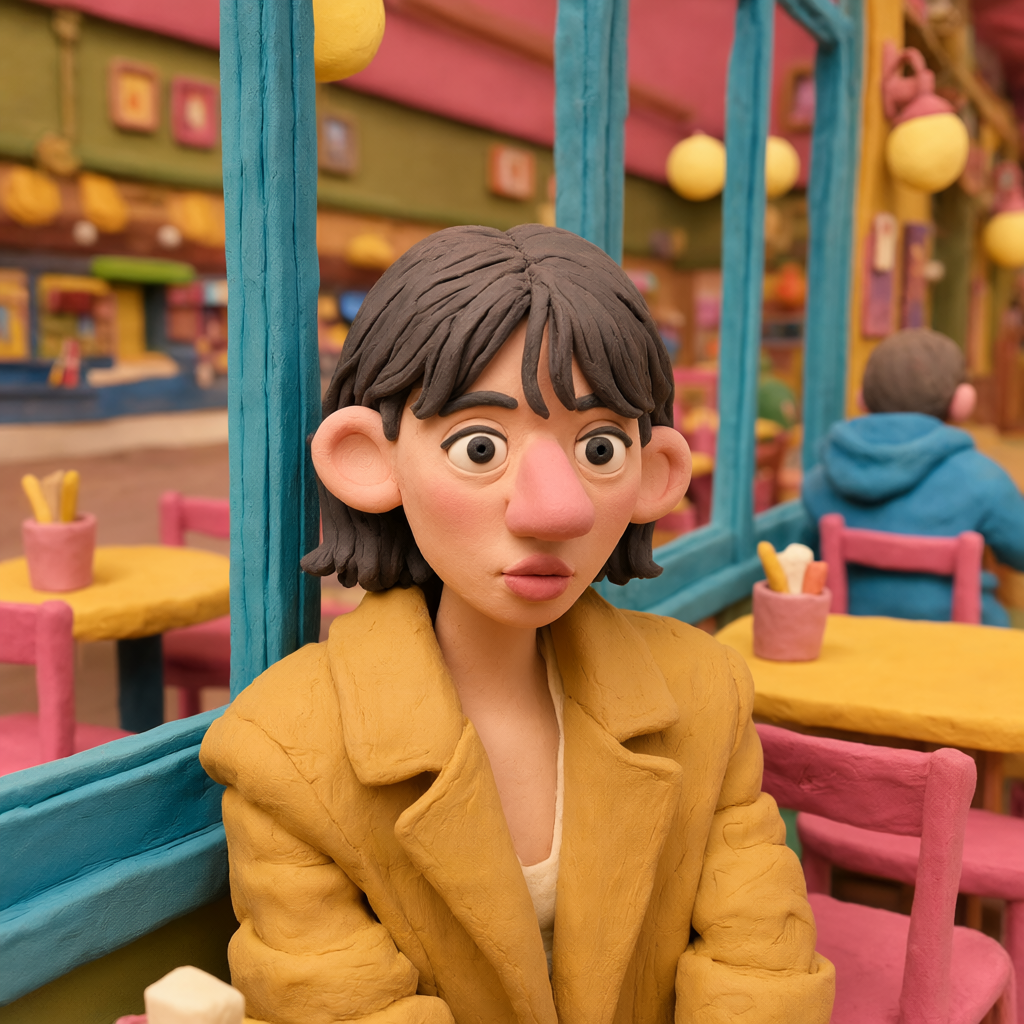
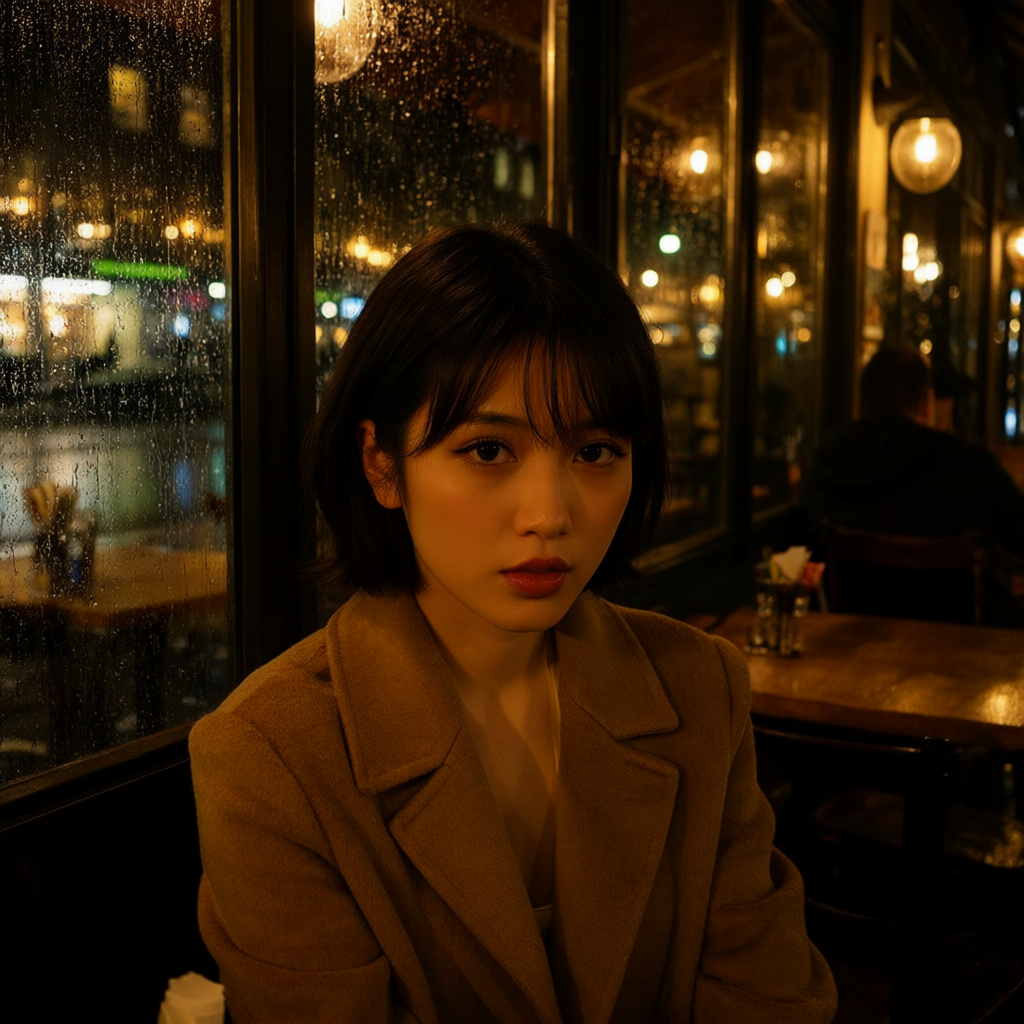
One good portrait can become a dozen different pictures. This guide shows how to take a single rainy café portrait and restyle it with the Muse Style library — Claymation, Japanese flat illustration and Hollywood black-and-white — without losing the person, the pose or the composition. Open Create AI Image in another tab and follow along.
Before you start
- You need a free Agentics account. New accounts get 3 free images; after that each image costs $0.10 and failed generations are never charged.
- Muse is an uncensored image generator and editor for adults (18+). Only upload photos you have the right to use.
- The Style library has 1,300+ styles. You can browse it from the create page and apply any style to a new prompt or to an existing image.
Step 1: Generate a strong base portrait
Style transfer works best when the source image is clear. Describe the subject, setting, light and camera, for example:
A woman in her late 20s sitting by a café window on a rainy evening, holding a cup of coffee, warm interior light, raindrops on the glass, city lights blurred outside, 50 mm lens, shallow depth of field, photo.
Generate a few versions and keep the one with the cleanest face, hands and composition. That image is your base.
Step 2: Open the Style library
On Create AI Image, add your base image, then open the Style library. Search by name ("clay", "flat", "noir") or browse categories. Pick one style at a time so you can compare results fairly.
Step 3: Claymation
Choose a Claymation / stop-motion style. Keep your prompt short — the style does the heavy lifting. Adding "keep the same pose and composition" helps the edit stay faithful.
Look for soft fingerprint-like texture, rounded shapes and miniature-set lighting.
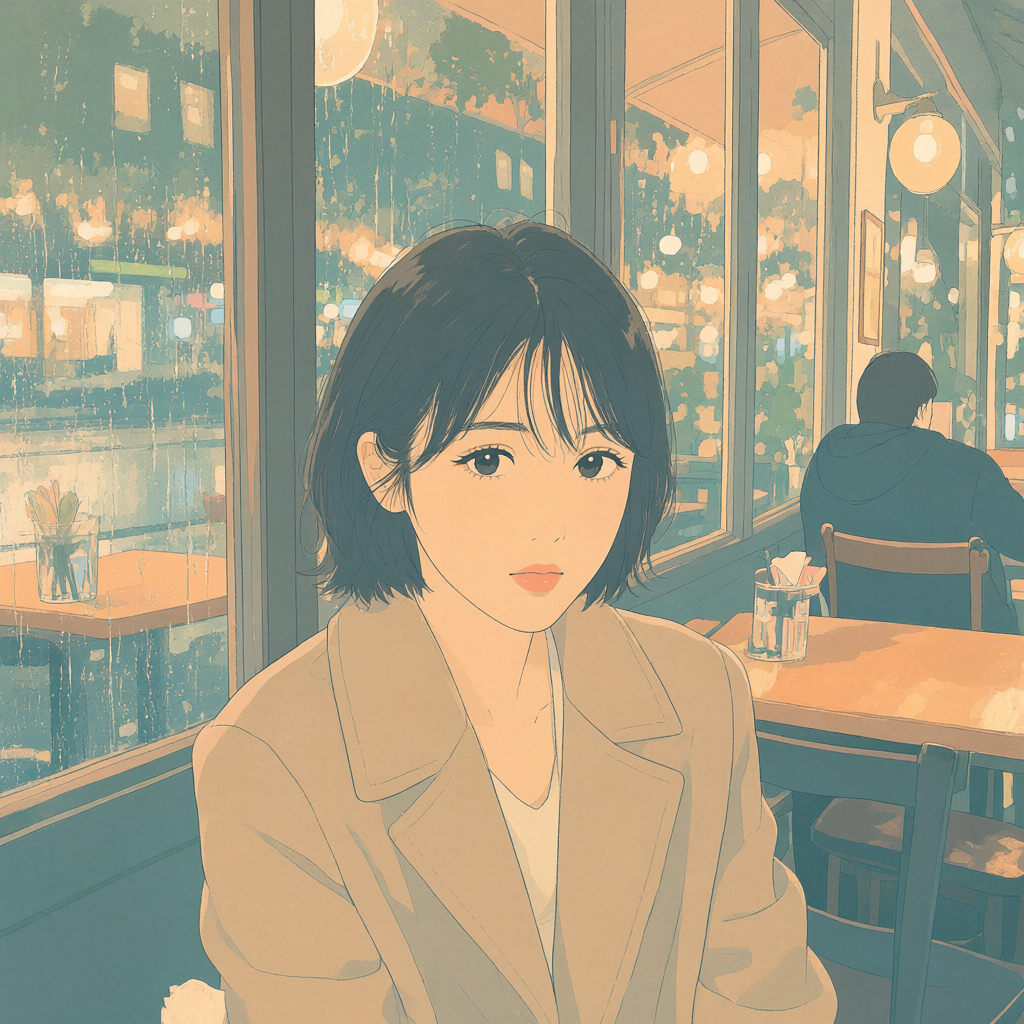
Step 4: Japanese flat illustration
Switch to a Japanese flat-color illustration style. This turns the rain and city lights into clean shapes and limited color, great for covers, stickers or social posts.
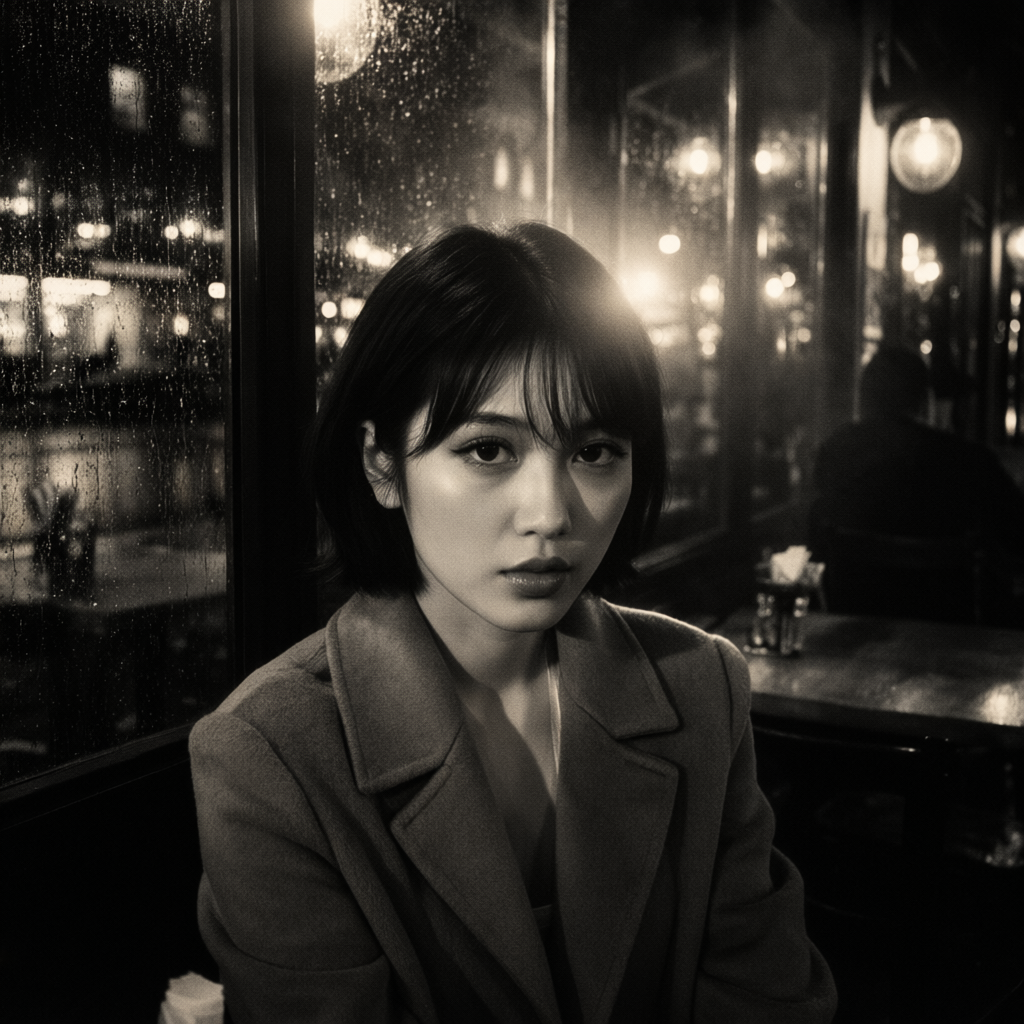
Step 5: Hollywood black-and-white
Pick a classic Hollywood B&W style for high-contrast, film-noir light. Rain on glass looks especially good here.
Tips
- Always restyle from the same base image, not from a previous edit, so quality doesn't drift.
- If the face changes too much, add "keep the same face and expression" to the prompt.
- Try 2–3 styles from the same category before switching — small differences matter.
- Post the original next to the styled versions; a set of four tells the story best.
Wrap-up
One portrait, four looks, a few minutes of work. Try it yourself on Muse — start from Create AI Image and explore the 1,300+ styles in the Style library.
Related guides
Make a looping 360° orbit from one square image
Turn one square still into a seamless 3-second camera orbit with Muse 360 Orbit. Crop, generate, download — no prompt needed. Step-by-step.
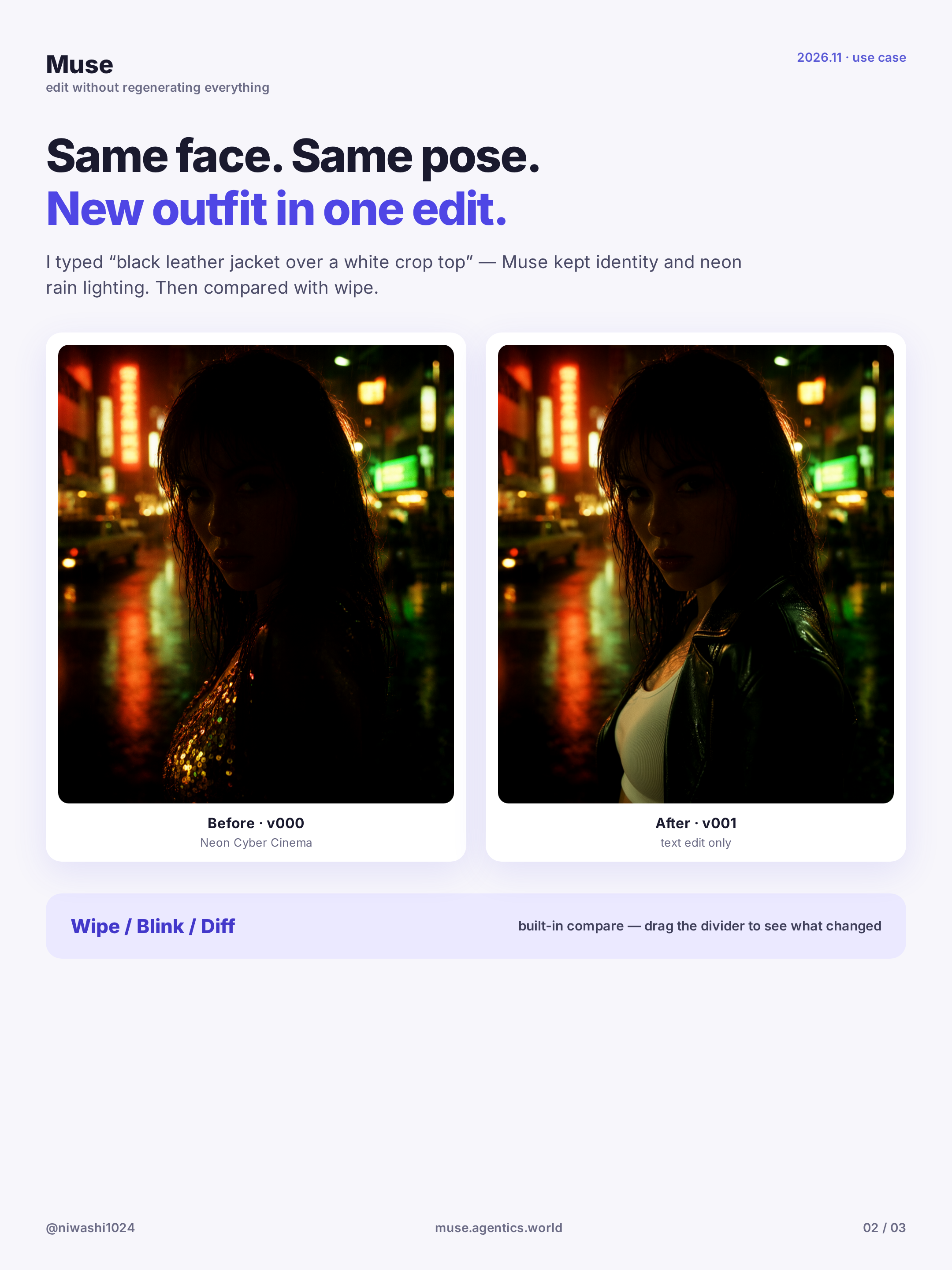
Keep the same face across outfit edits (with A|B wipe compare)
Upload or generate a base character, change the outfit with one prompt while keeping the face, then compare versions with the A|B wipe slider. Step-by-step.
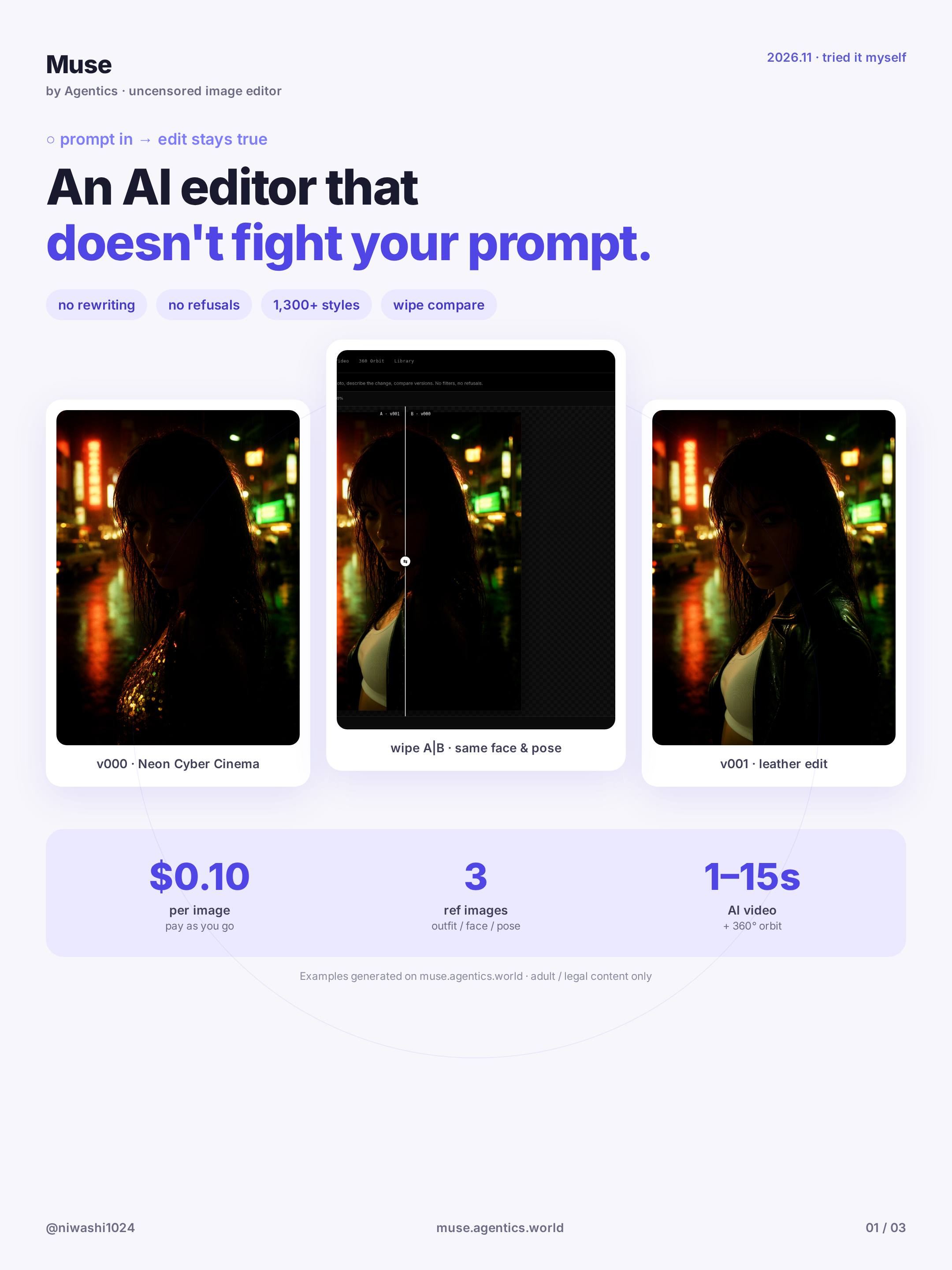
Getting started with Muse: uncensored AI image editing and pricing
What Muse is, how to sign in, the 3 free images and pay-as-you-go rates, and how to run your first face-consistent edit. Step-by-step.