
Make a looping 360° orbit from one square image
Turn one square still into a seamless 3-second camera orbit with Muse 360 Orbit. Crop, generate, download — no prompt needed. Step-by-step.
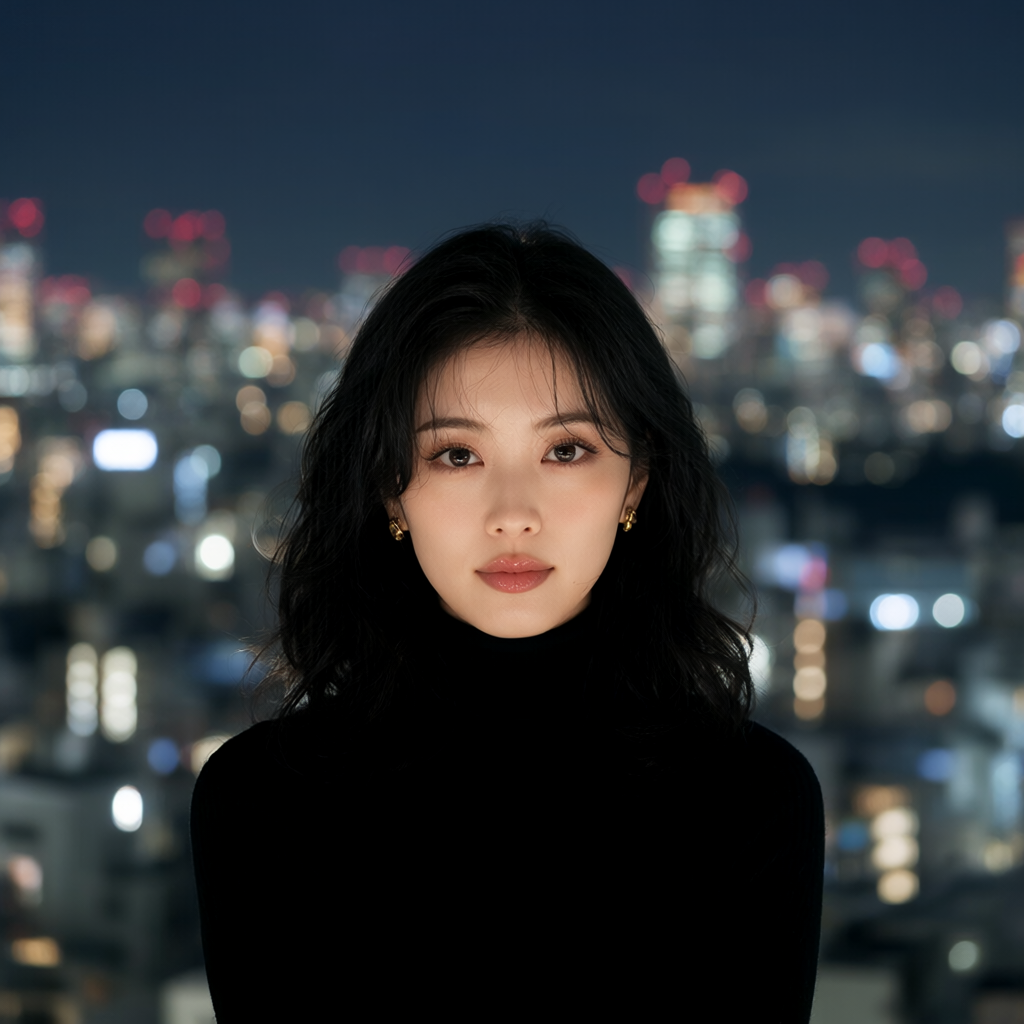
Freeze time and fly the camera once around a subject. Muse's 360 Orbit turns a single square still into a seamless 3-second loop — no prompt to write, $0.30 when the video is delivered. Open 360 Orbit in another tab and follow along.
What 360 Orbit is
360 Orbit is a frozen-moment camera orbit: your subject stays still while the camera circles once and ends on the first frame, so the clip loops cleanly. Output is 768×768, 3 seconds, no sound. The prompt is fixed to the orbit LoRA's training caption — you only pick the image.
It works best with one adult person centered in the frame with a little space around them. Other subjects can work, but people are what the LoRA was trained on.
Before you start
- Sign in at muse.agentics.world with a free Agentics account.
- New accounts get 3 free images. Those free credits are for stills only — 360 Orbit is always paid from your wallet ($0.30 per delivered orbit; failed runs are free).
- Muse is 18+ only. Every character must be an adult. Only use images you have the right to use.
Step 1: Make a strong square still
Open Create AI Image and set the aspect ratio to 1:1. Write a clear portrait prompt that puts one person in the middle of the frame, for example:
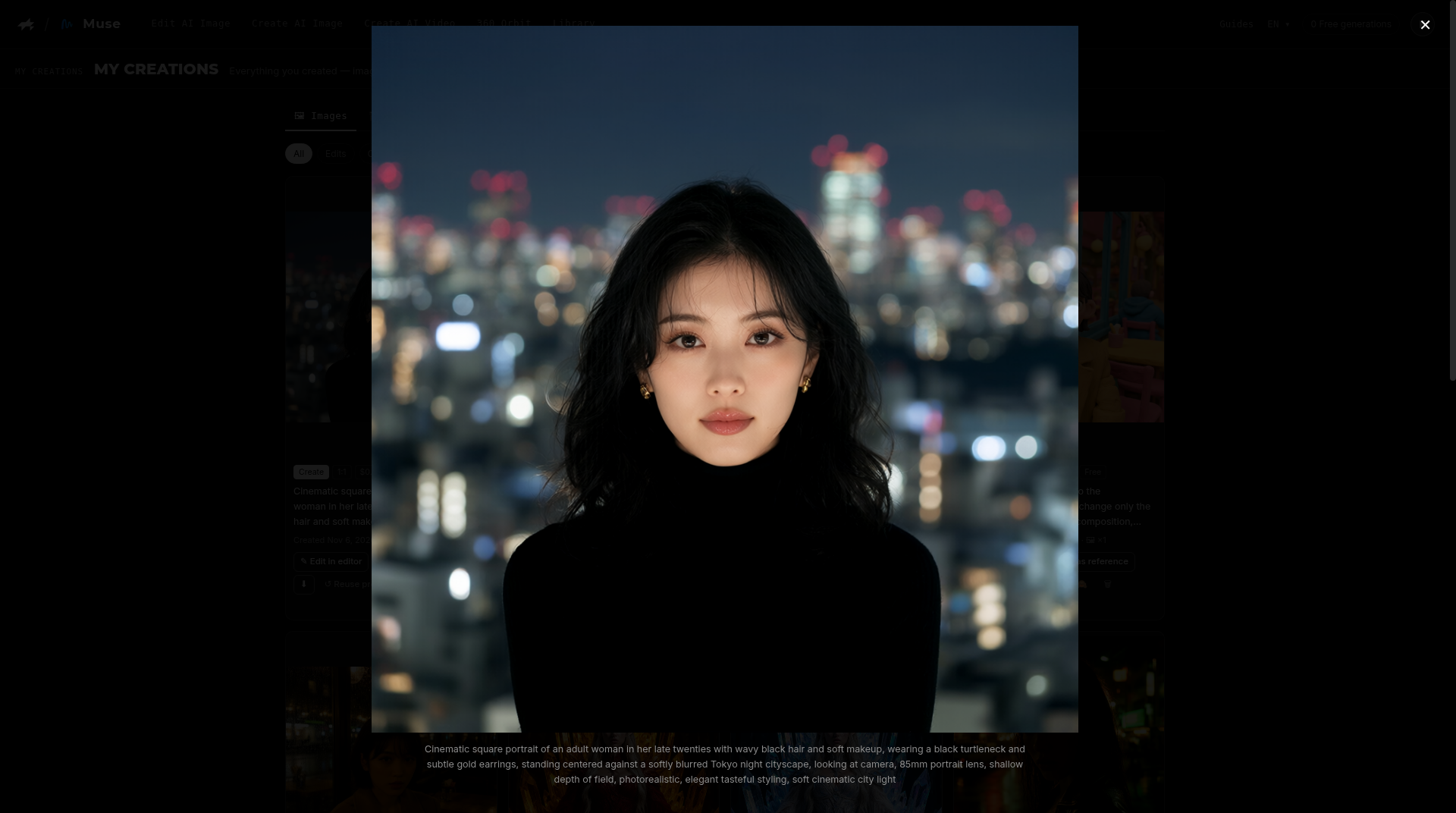
Cinematic square portrait of a woman in her late twenties with wavy black hair, wearing a black turtleneck and gold earrings, standing centered against a softly blurred night cityscape, looking at camera, 85mm, shallow depth of field, photorealistic
Leave a little headroom and side space — tight face crops leave the camera nowhere to travel. Keep the cleanest result; that still becomes your orbit source.
You can also upload a PNG/JPG/WebP (up to 20 MB) you already own, or pick something from My Creations.
Step 2: Open 360 Orbit and crop
Go to 360 Orbit. Drop, paste, or pick your still. If it is not square, drag the crop frame (or crop to centre) until the subject sits in the middle with breathing room around them.
There is nothing else to configure — no style picker, no custom prompt. Press generate and wait about 3 minutes.
Step 3: Download and loop
When the video lands in My Creations → Videos, download it. Because the last frame matches the first, it loops seamlessly on X, Threads, Discord, or as an avatar preview.
Here is the orbit from the square portrait above — front → side → back → front in one seamless loop:
Files in My Creations are kept for 3 days, so save anything you want to keep.
Tips for a clean orbit
- One subject, centred, with space on all sides beats a busy group shot.
- Square from the start (1:1 on Create) is easier than cropping a tall portrait later.
- Soft, even light on the still helps the orbit stay photoreal; harsh side light can flicker as the camera moves.
- Want real motion (hair blowing, a head turn) instead of a frozen spin? Use Image to Video at $0.10/sec instead.
Wrap-up
One square still → crop → generate → a looping 3-second orbit for $0.30. Try it on Muse 360 Orbit, or start from a fresh 1:1 portrait on Create AI Image.
Related guides
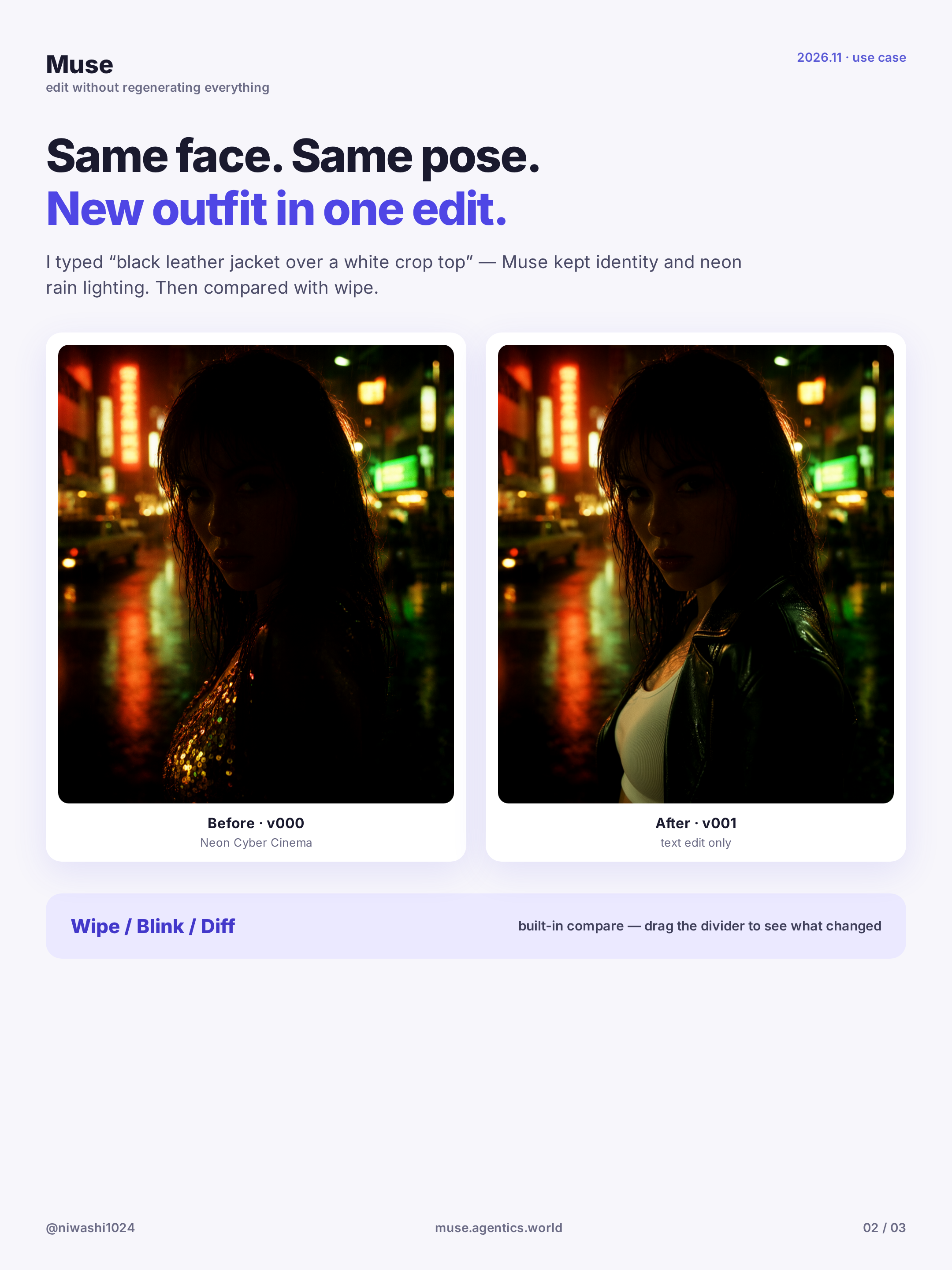
Keep the same face across outfit edits (with A|B wipe compare)
Upload or generate a base character, change the outfit with one prompt while keeping the face, then compare versions with the A|B wipe slider. Step-by-step.
Getting started with Muse: uncensored AI image editing and pricing
What Muse is, how to sign in, the 3 free images and pay-as-you-go rates, and how to run your first face-consistent edit. Step-by-step.
Uncensored AI Image Prompts: A Practical Guide
How to write prompts for an uncensored AI image generator: a five-part structure, styles, aspect ratios, references, example prompts and fixes.