
Keep the same face across outfit edits (with A|B wipe compare)
Upload or generate a base character, change the outfit with one prompt while keeping the face, then compare versions with the A|B wipe slider. Step-by-step.
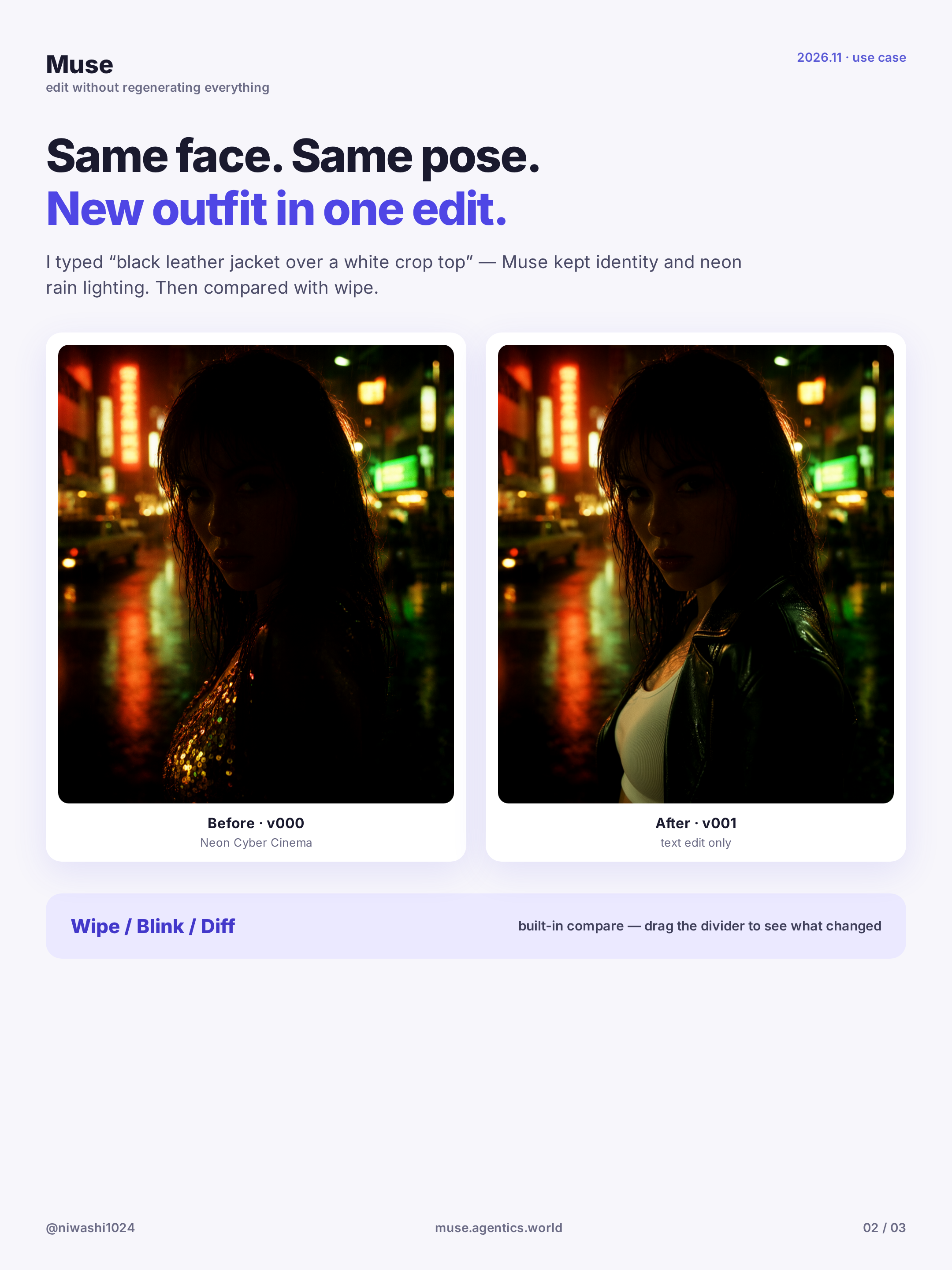
Same face, totally different outfit — that is the edit that usually sells people on Muse. This guide shows how to generate or upload a base character, change the outfit with one short prompt while keeping identity, and drag the A|B wipe slider to compare before and after. Open Create AI Image in another tab and follow along.
Before you start
- You need a free Agentics account. New accounts get 3 free images; after that each image costs $0.10 and failed generations are never charged.
- Muse is an uncensored image editor for adults (18+). Only upload photos you have the right to use, and every character must be an adult.
- Character consistency works best when you edit from a strong base image instead of regenerating from text each time.
Step 1: Make a strong base character
Generate a clear portrait (or upload one you own) on Create AI Image. Describe age, hair, face, light and framing. Keep the version with the cleanest face and hands — that image becomes your base and will be Image 1 in later edits.
For a series, always come back to this base (or to your favourite edit of it) rather than starting over from a new text prompt.
Step 2: Change the outfit, keep the face
Open the base in Edit AI Image. Give one short instruction that names what to change and what to keep:
Change her outfit to a black leather jacket over a white tee and jeans. Keep the same face, hairstyle, body and pose.
Or, if you have an outfit reference as Image 2:
Keep the face, hairstyle and identity of the woman in Image 1. Dress her in the full outfit from Image 2, keeping its colours and fabrics. Same pose and framing.
Generate. The model should swap clothes and leave identity alone. If the face drifts, regenerate with a stronger "keep the same face and identity" line at the start of the prompt.
Step 3: Compare with the A|B wipe slider
Every result is a new version. Open the compare UI and pick the base as A and the outfit edit as B. Drag the wipe slider (or try blink / difference view) to see exactly what changed — face locked, clothes new.
Here is a short wipe demo of the same character in two outfits:
Watch the A|B wipe compare video
Download the versions you like; images in My Creations are kept for 3 days.
Tips for consistency
- Edit from the same base every time — do not restyle from a previous restyle if the face is already drifting.
- Change one thing per edit (outfit or background or pose), then lock that version before the next change.
- Put the face reference in Image 1 and say so in the prompt.
- For a matching series (same person, many looks), save the best face edit and reuse it as Image 1.
- Soft, even light on the base helps later edits stay photorealistic.
Wrap-up
One base character, one prompt, a wipe slider to prove the face stayed put. Try it on Muse — start from Create AI Image, edit in Edit AI Image, and compare versions side by side. When you are ready for motion, send a favourite still to Image to Video.
Related guides
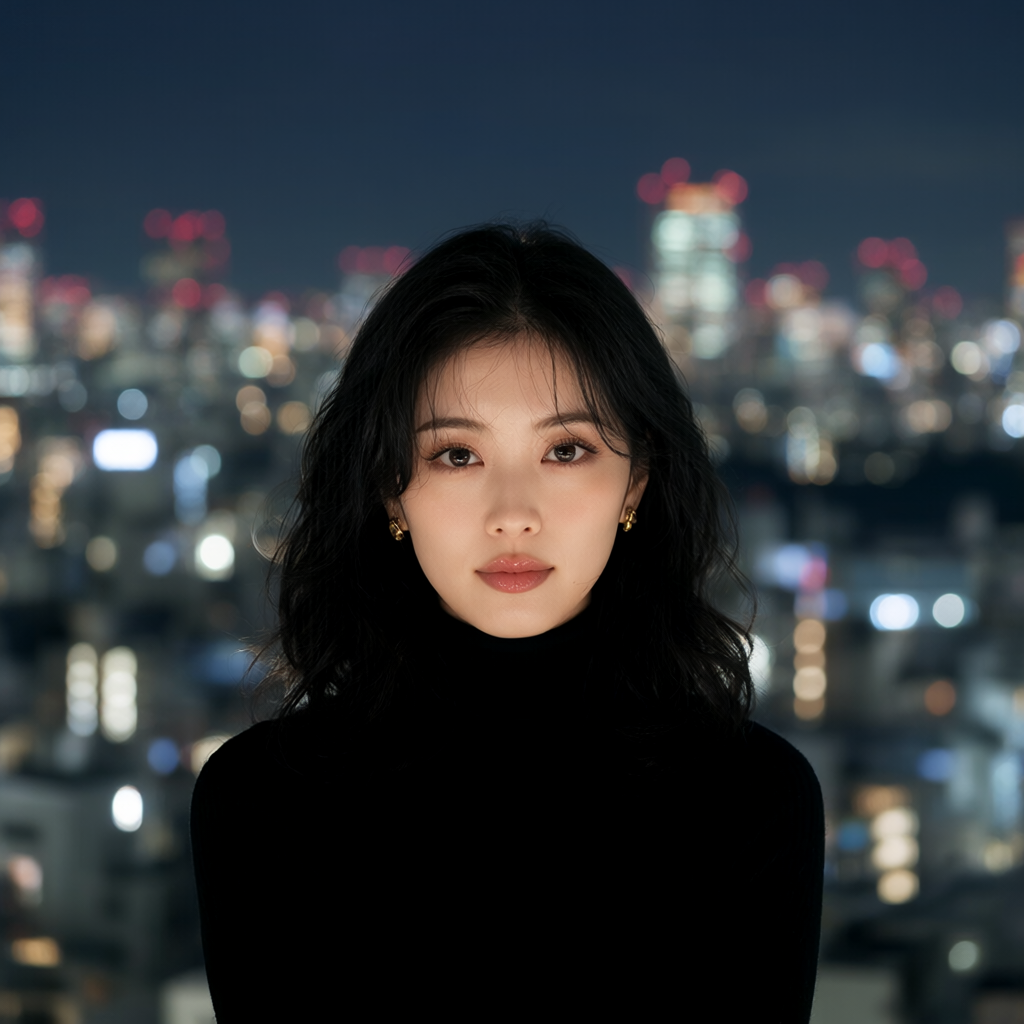
Make a looping 360° orbit from one square image
Turn one square still into a seamless 3-second camera orbit with Muse 360 Orbit. Crop, generate, download — no prompt needed. Step-by-step.
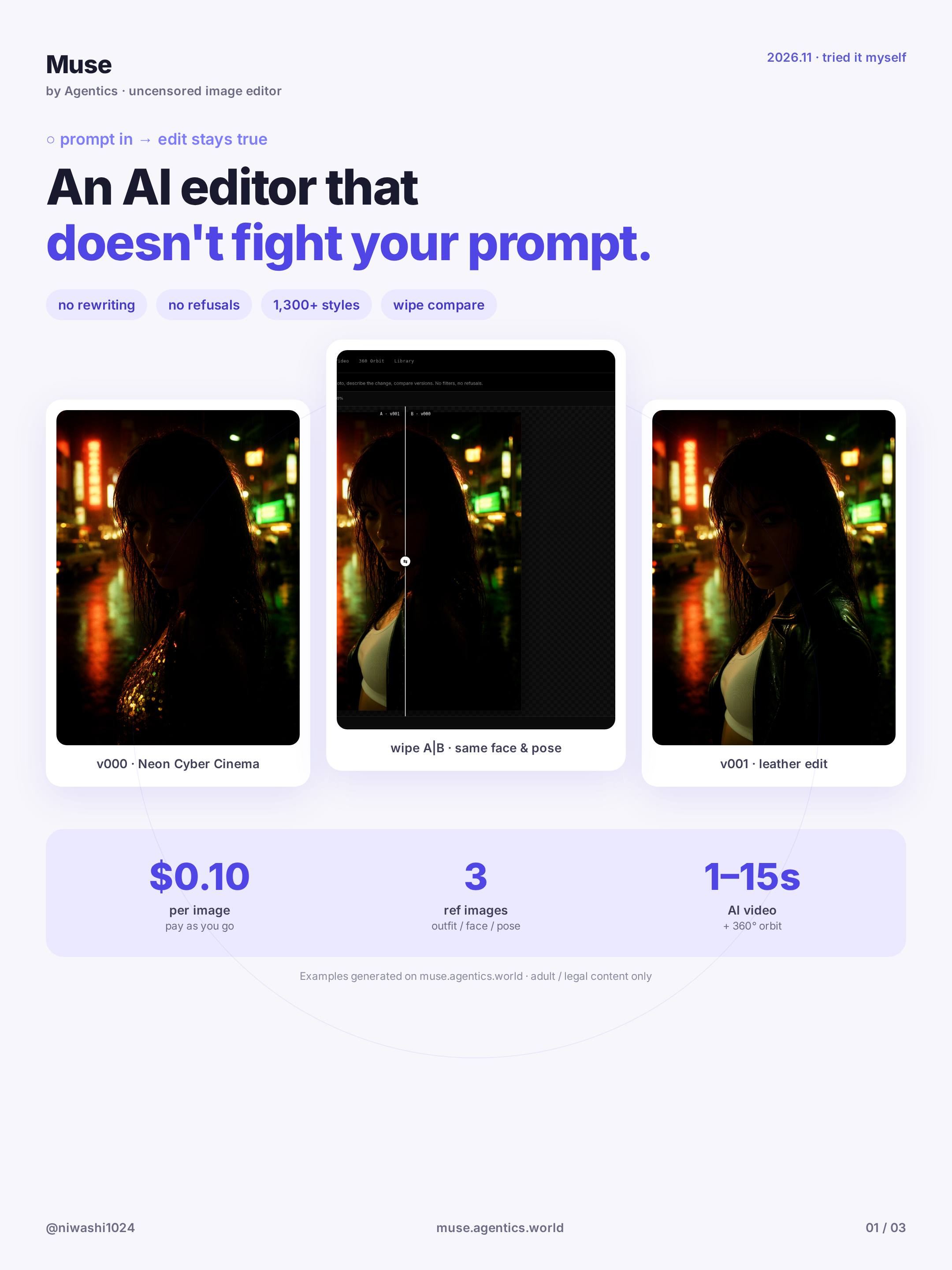
Getting started with Muse: uncensored AI image editing and pricing
What Muse is, how to sign in, the 3 free images and pay-as-you-go rates, and how to run your first face-consistent edit. Step-by-step.
Uncensored AI Image Prompts: A Practical Guide
How to write prompts for an uncensored AI image generator: a five-part structure, styles, aspect ratios, references, example prompts and fixes.