
Uncensored AI Image Prompts: A Practical Guide
How to write prompts for an uncensored AI image generator: a five-part structure, styles, aspect ratios, references, example prompts and fixes.
An uncensored AI image generator sends your prompt straight to the model. Nothing rewrites it, softens it or refuses it after you click generate. That freedom is useful, but it also means the result depends almost entirely on how you write the prompt. This guide walks through a practical prompt structure, real examples, and fixes for the most common problems, so your credits go to images you actually want to keep.
Why prompts matter more without a filter
On filtered tools, a hidden assistant often expands or "cleans up" what you type. You never see the final prompt, so you can't learn what works. On an uncensored generator like Muse's Create page, what you write is what the model reads. Vague prompts give vague images, and specific prompts give specific images. That's good news: once you learn a structure, your results become repeatable.
It also matters for cost. Muse charges $0.10 per delivered image, pay as you go, with no subscription, and failed generations are free. New accounts get 3 free generations, which can be used for images only (not video or 360 Orbit). A good prompt structure means fewer retries and more keepers.
The five-part prompt structure
Most strong prompts cover five things, in roughly this order:
- Subject. Who or what is in the image. Include age range (always an adult), build, hair, expression and clothing or lack of it.
- Action and pose. What the subject is doing: sitting on a windowsill, looking over the shoulder, walking toward the camera.
- Setting. Where it happens: a neon-lit Tokyo alley, a sunlit loft bedroom, a misty forest at dawn.
- Lighting and mood. Soft window light, hard rim light, golden hour, candlelight, moody low-key shadows.
- Camera and finish. Close-up, three-quarter shot or full body; 35mm or 85mm lens; shallow depth of field; film grain; photorealistic or anime.
A prompt that covers all five might read:
A cinematic portrait of a woman in her late twenties with shoulder-length auburn hair, wearing an oversized white shirt, sitting on a windowsill and looking out at the rain, soft grey window light, quiet and intimate mood, 85mm lens, shallow depth of field, subtle film grain.
Compare that with "pretty woman by a window". Both are uncensored, but only one tells the model what to draw.
Use styles instead of long style descriptions
Describing a look in words ("in the style of a 1970s film photo with warm faded colours…") takes up space and is inconsistent. Muse has a library of 1,300+ styles covering photographic, cinematic, anime, illustration and painterly looks. Pick a style and keep the prompt focused on content: subject, pose, setting and lighting.
A practical workflow:
- Write the content prompt first and generate once with no style.
- If the composition is right but the look is wrong, keep the prompt and try two or three styles.
- When you find a style you like, note its name next to the prompt so you can reuse the pair.
Choose the aspect ratio before you write
The frame changes what the model composes. Muse offers 1:1, 3:4, 4:3, 9:16 and 16:9.
- 3:4 or 9:16 for portraits, full-body shots and vertical social posts.
- 16:9 or 4:3 for wide scenes, wallpapers and environments.
- 1:1 for avatars and centered close-ups.
If you ask for "full body, standing" in 16:9, the model may shrink the figure or crop the feet. Matching the ratio to the shot saves a retry.
Use reference images for faces, outfits and poses
Words alone struggle with a specific face or outfit. On Muse you can attach up to 3 reference images (PNG, JPG or WebP, up to 20 MB each). Refer to them by number in the prompt:
Image 1 wearing the outfit from Image 2, in the pose from Image 3, soft studio lighting.
Image 1 is the image being edited. If you don't add a main image, the first reference becomes Image 1. The Library has reference images you can reuse if you don't have your own. Only use photos of real people when you have their consent; non-consensual intimate imagery of real people is prohibited.
Example prompts you can adapt
Each example follows the five-part structure. Swap the details to fit your idea.
Boudoir photography
A tasteful boudoir photo of a woman in her thirties in black lace lingerie, lying on white linen sheets, morning light through sheer curtains, warm and relaxed mood, 50mm lens, soft focus background, natural skin texture.
Anime character
An adult anime woman with long silver hair and red eyes, wearing a revealing dark fantasy armor set, standing on a cliff at sunset, dramatic backlight, wind in her hair, full body, detailed illustration.
Fine-art nude
A black-and-white fine-art figure study of an adult woman seated with her back to the camera, sculptural studio lighting from one side, deep shadows, minimal grey backdrop, medium format film look.
Fantasy scene
A muscular adult elf warrior, shirtless, resting by a campfire in a dark forest, orange firelight on his skin, fireflies in the background, cinematic wide shot, painterly style.
Fixing common problems
The image ignores part of the prompt. Long prompts dilute attention. Put the most important detail first and cut adjectives that don't change the picture.
Wrong body framing. Say the shot type explicitly ("full body", "waist up", "close-up of face") and match the aspect ratio.
Hands, faces or anatomy look off. Regenerate once, then fix the details in the AI image editor instead of starting over. Describe the change plainly, such as "fix the left hand so it has five fingers", and compare versions with the Wipe, Blink or Difference views.
The result looks plastic. Add texture cues: "natural skin texture", "film grain", "soft window light". Over-lit, evenly lit prompts tend to look artificial.
Inconsistent character across images. Use the same face reference each time and keep the description of hair, eyes and build identical. Change only the pose, setting or outfit.
From still image to motion
Once you have a still you like, you can animate it. Image to Video turns a still into a short clip, charged at $0.10 per second of video. 360 Orbit spins your subject in a full turn for $0.30 per orbit. Describe motion simply in the video prompt ("slow head turn toward the camera, hair moving in the breeze") rather than repeating the whole image prompt. Note that the 3 free starter generations are for images only.
Files are kept for 3 days, so download anything you want to keep.
Rules worth knowing
Uncensored doesn't mean anything goes. Muse is for adults 18+, and it prohibits content involving minors, non-consensual intimate imagery of real people and illegal content. Always describe characters as adults. Keeping prompts inside these rules also keeps your account in good standing.
Quick checklist
Before you generate, check that your prompt has:
- A clear adult subject with key details
- An action or pose
- A setting
- Lighting and mood
- Shot type and camera or finish
- A matching aspect ratio, and a style if you want a specific look
- Numbered references if a face or outfit must match
Ready to try it? Open Create, paste one of the examples above and use your 3 free image generations. For a broader walkthrough, read our guide on how to generate NSFW AI images.
Related guides
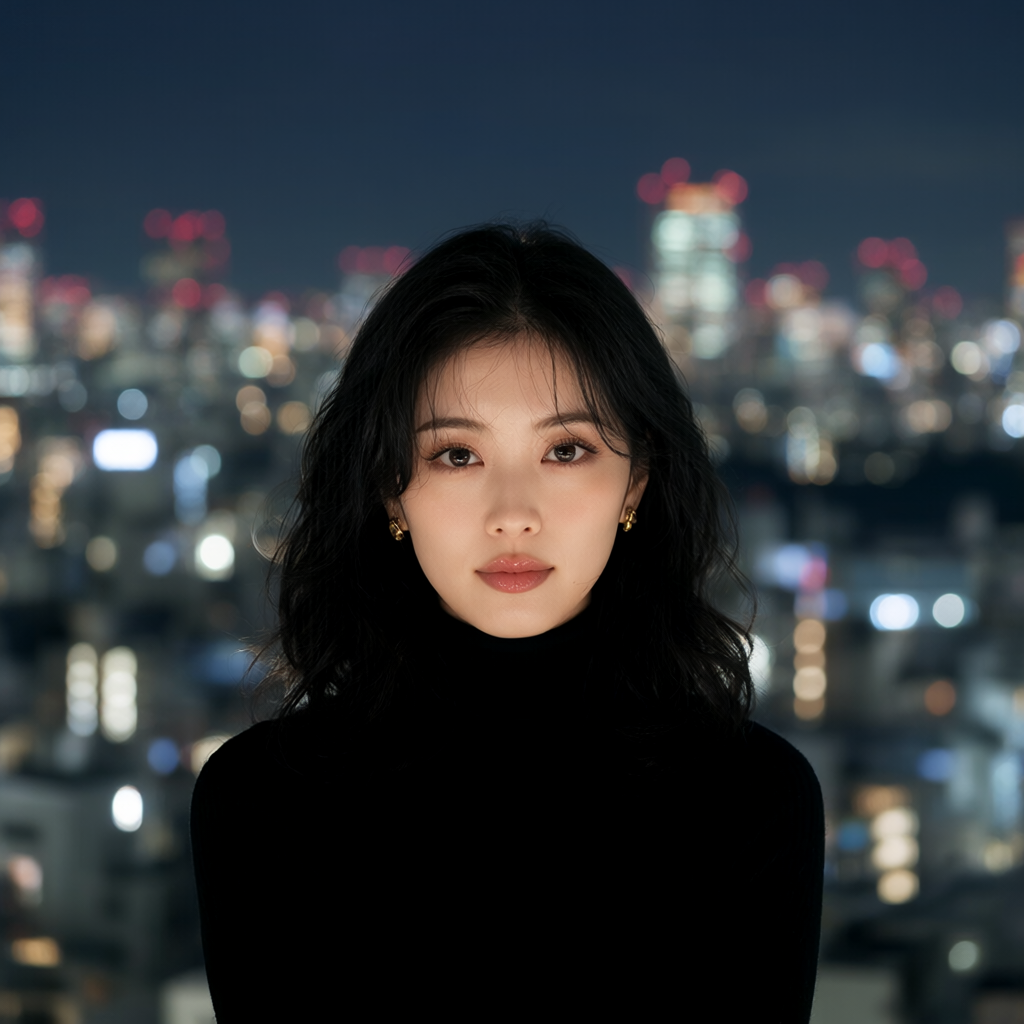
Make a looping 360° orbit from one square image
Turn one square still into a seamless 3-second camera orbit with Muse 360 Orbit. Crop, generate, download — no prompt needed. Step-by-step.
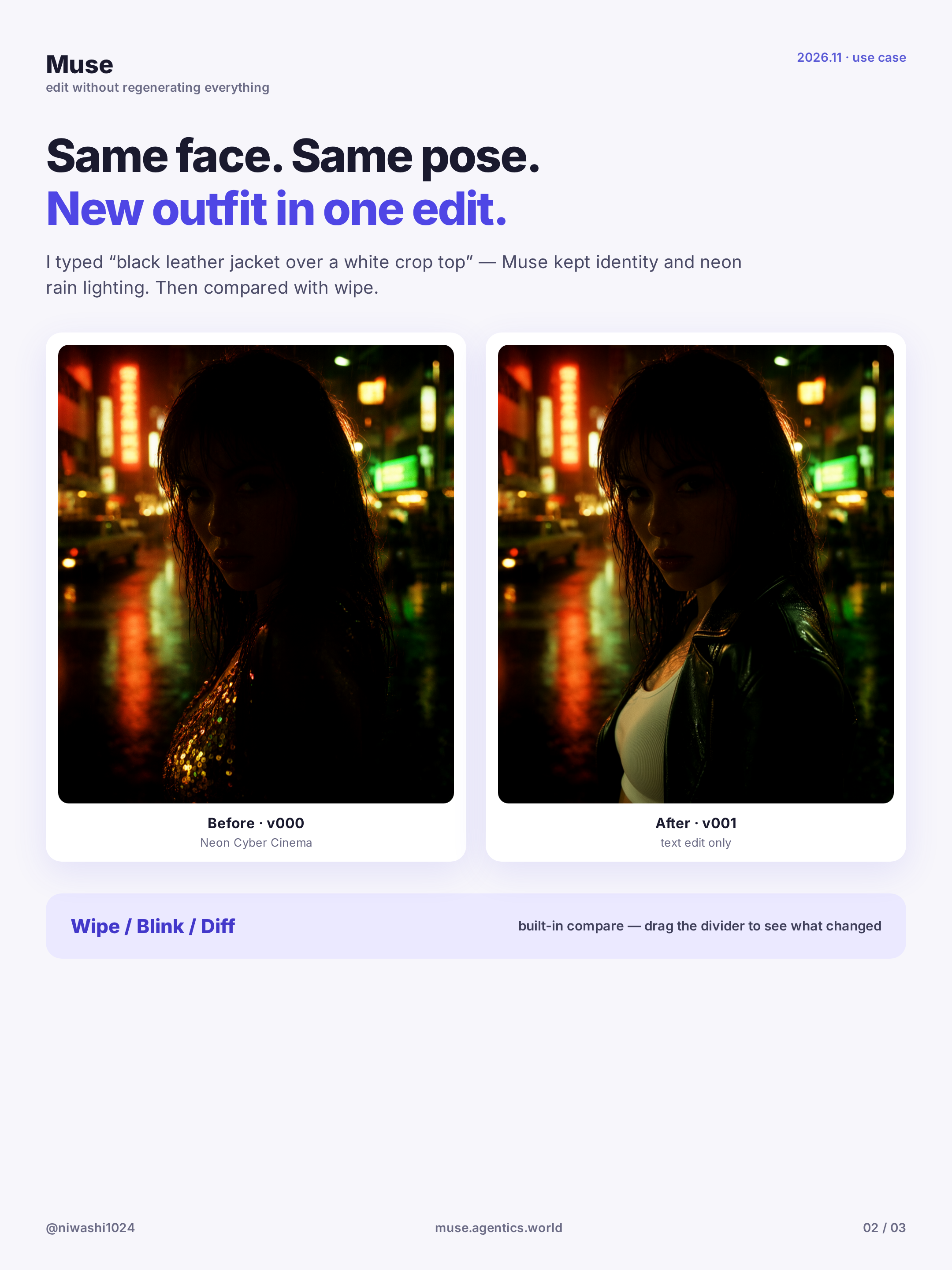
Keep the same face across outfit edits (with A|B wipe compare)
Upload or generate a base character, change the outfit with one prompt while keeping the face, then compare versions with the A|B wipe slider. Step-by-step.
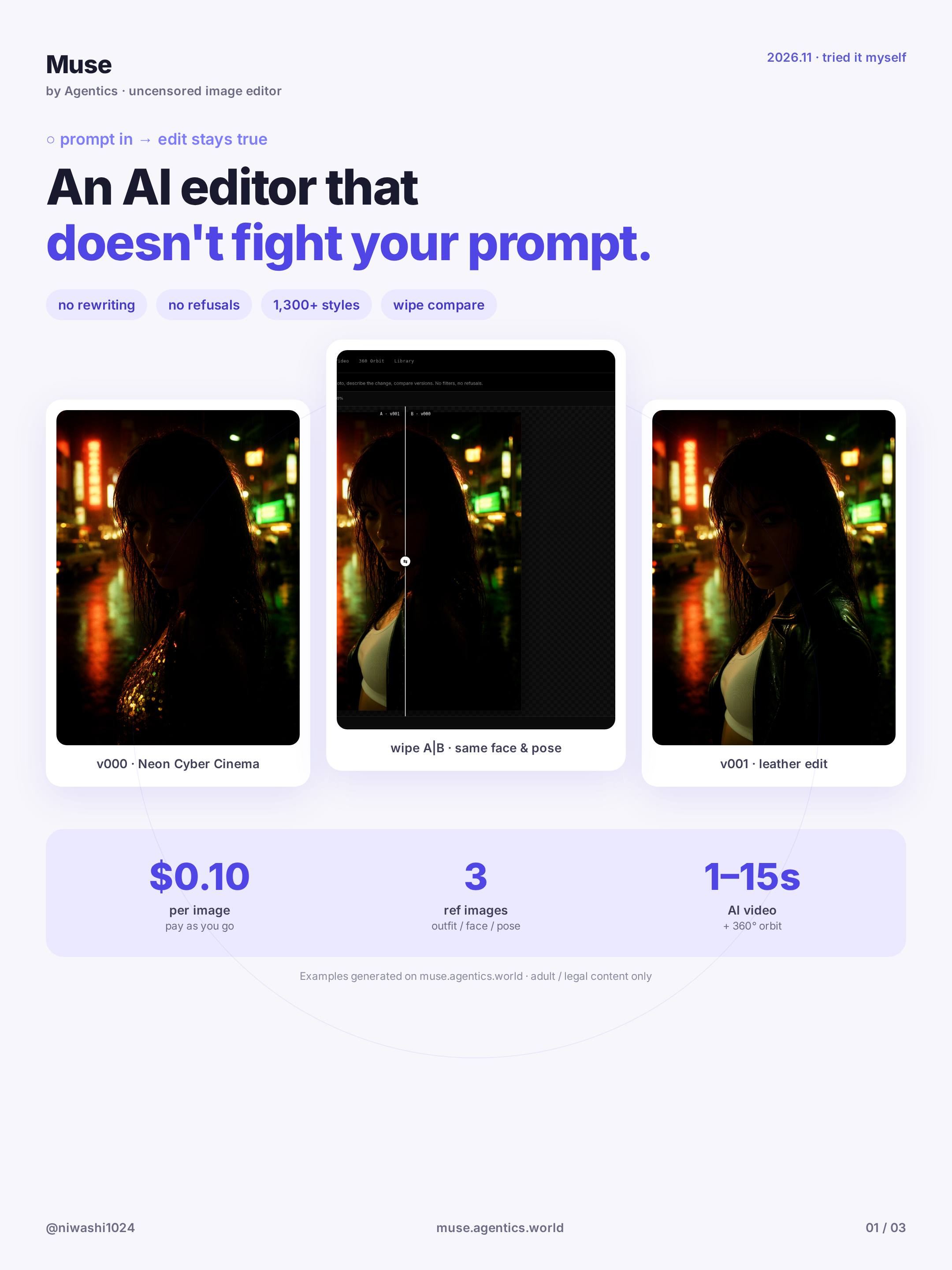
Getting started with Muse: uncensored AI image editing and pricing
What Muse is, how to sign in, the 3 free images and pay-as-you-go rates, and how to run your first face-consistent edit. Step-by-step.